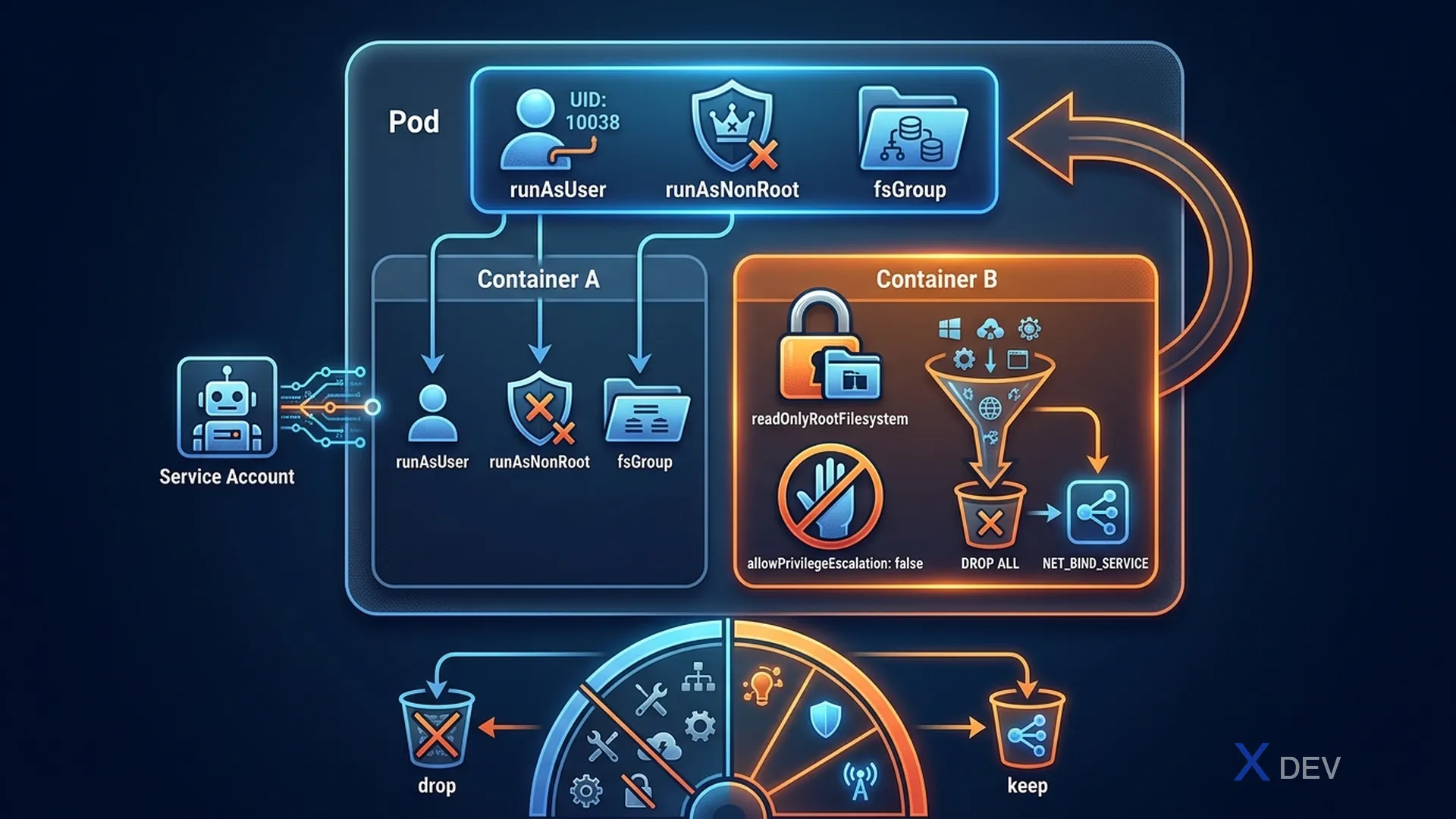
1. SecurityContext
SecurityContext defines privilege and access control settings for a Pod or Container.
apiVersion: v1
kind: Pod
spec:
  securityContext:            # Pod-level: applies to ALL containers
    runAsUser: 1000           # UID to run containers
    runAsGroup: 3000          # Primary GID
    fsGroup: 2000             # GID for mounted volumes
    runAsNonRoot: true        # Reject containers that run as root

  containers:
  - name: app
    image: myapp
    securityContext:          # Container-level: overrides pod-level
      allowPrivilegeEscalation: false
      readOnlyRootFilesystem: true   # Filesystem is read-only
      capabilities:
        add: ["NET_BIND_SERVICE"]    # Add capability
drop: ["ALL"] # Drop all, add only what needed| Setting | Level | Effect |
|---|---|---|
runAsUser | Pod/Container | Run process with a specific UID |
runAsNonRoot | Pod/Container | Reject running if UID = 0 (root) |
readOnlyRootFilesystem | Container | Mount root filesystem as read-only |
allowPrivilegeEscalation | Container | Block privilege escalation (sudo etc.) |
privileged | Container | Run as privileged (like root on host) |
fsGroup | Pod | GID for volume files (shared volume access) |
Exam tip: Container-level
securityContextoverrides Pod-level settings. If a Pod hasrunAsUser: 1000and a container hasrunAsUser: 2000, that container runs with UID 2000. Commonly tested: verify user withkubectl exec pod -- idorwhoami.
2. Linux Capabilities
Capabilities allow granting specific privileges without full root.

# Common examples:
NET_BIND_SERVICE  — Bind to port < 1024 (e.g., port 80)
NET_ADMIN         — Network administration (ifconfig etc.)
SYS_TIME          — Modify system clock
CHOWN             — Change file ownership
SETUID/SETGID     — Change user/group ID

securityContext:
  capabilities:
    drop: ["ALL"]             # Best practice: drop all first
    add: ["NET_BIND_SERVICE"] # Then re-add only what's needed
3. ServiceAccounts
Pods use a ServiceAccount to authenticate with the Kubernetes API.
# Create ServiceAccount
kubectl create serviceaccount my-sa

# Bind to a Role
kubectl create rolebinding my-binding \
  --role=pod-reader \
  --serviceaccount=default:my-sa

# Assign SA to a Pod
spec:
  serviceAccountName: my-sa     # Use specific SA
  automountServiceAccountToken: false  # Don't auto-mount SA token

# By default: the default SA is mounted at /var/run/secrets/kubernetes.io/serviceaccount/
# The token file can be used to call the K8s API from within the container| Concept | Description |
|---|---|
| Default SA | Each namespace has a built-in default SA (minimal permissions) |
| Token mount | Token is automatically mounted into the pod unless disabled |
automountServiceAccountToken: false | Disable token mounting (best security practice) |
Exam tip: When a Pod needs to call the Kubernetes API (e.g., operator pattern), it needs a ServiceAccount with appropriate permissions. If the Pod doesn't need API access, best practice is to set
automountServiceAccountToken: false. CKAD commonly tests: creating a SA, binding a role, and setting the SA in the Pod spec.
4. readOnlyRootFilesystem with emptyDir
# When using readOnlyRootFilesystem: true, the app CANNOT write to the root FS.
# But the app may still need to write temp files → use emptyDir volumes:

spec:
  containers:
  - name: app
    image: myapp
    securityContext:
      readOnlyRootFilesystem: true
    volumeMounts:
    - name: tmp
      mountPath: /tmp        # App writes temp files here
    - name: cache
      mountPath: /app/cache
  volumes:
  - name: tmp
    emptyDir: {}
  - name: cache
    emptyDir: {}
5. Cheat Sheet
| Task | YAML / Command |
|---|---|
| Run container as non-root | securityContext: runAsNonRoot: true |
| Run with specific UID | securityContext: runAsUser: 1000 |
| Read-only filesystem | securityContext: readOnlyRootFilesystem: true |
| Drop all capabilities | capabilities: drop: ["ALL"] |
| Assign ServiceAccount | spec: serviceAccountName: my-sa |
| Verify user in container | kubectl exec pod -- whoami |
6. Practice Questions
Q1: A Pod spec has securityContext.runAsUser: 1000 at the Pod level. One container within the Pod has securityContext.runAsUser: 2000. What UID does that container run with?
- A) 0 (root, because Pod-level overrides)
- B) 1000 (Pod-level takes priority)
- C) 2000 (Container-level overrides Pod-level) ✓
- D) Both UIDs simultaneously
Explanation: Container-level securityContext settings override Pod-level settings. The container runs with UID 2000. Other containers in the same Pod without a container-level securityContext.runAsUser would inherit the Pod-level UID of 1000.
Q2: An application container needs to bind to port 80 (a privileged port below 1024) but should NOT run as root. How do you configure this?
- A) Set securityContext.privileged: true
- B) Set securityContext.runAsUser: 0
- C) Add NET_BIND_SERVICE capability while dropping ALL others ✓
- D) Use a NodePort Service instead of port 80
Explanation: Linux capabilities allow granular privilege grants. NET_BIND_SERVICE allows binding to ports below 1024 without full root. Best practice is to drop ALL capabilities first, then add only what's needed: capabilities: { drop: ["ALL"], add: ["NET_BIND_SERVICE"] }.
Q3: A Pod is running with readOnlyRootFilesystem: true, but the application tries to write to /tmp and fails. What is the best solution?
- A) Remove readOnlyRootFilesystem: true
- B) Set securityContext.privileged: true
- C) Mount an emptyDir volume at /tmp ✓
- D) Use a ConfigMap mounted at /tmp
Explanation: readOnlyRootFilesystem prevents writes to the container's filesystem, but emptyDir volumes are separate writable mounts. By mounting an emptyDir at /tmp, the application can write temp files there while the root filesystem remains read-only — maintaining the security benefit.