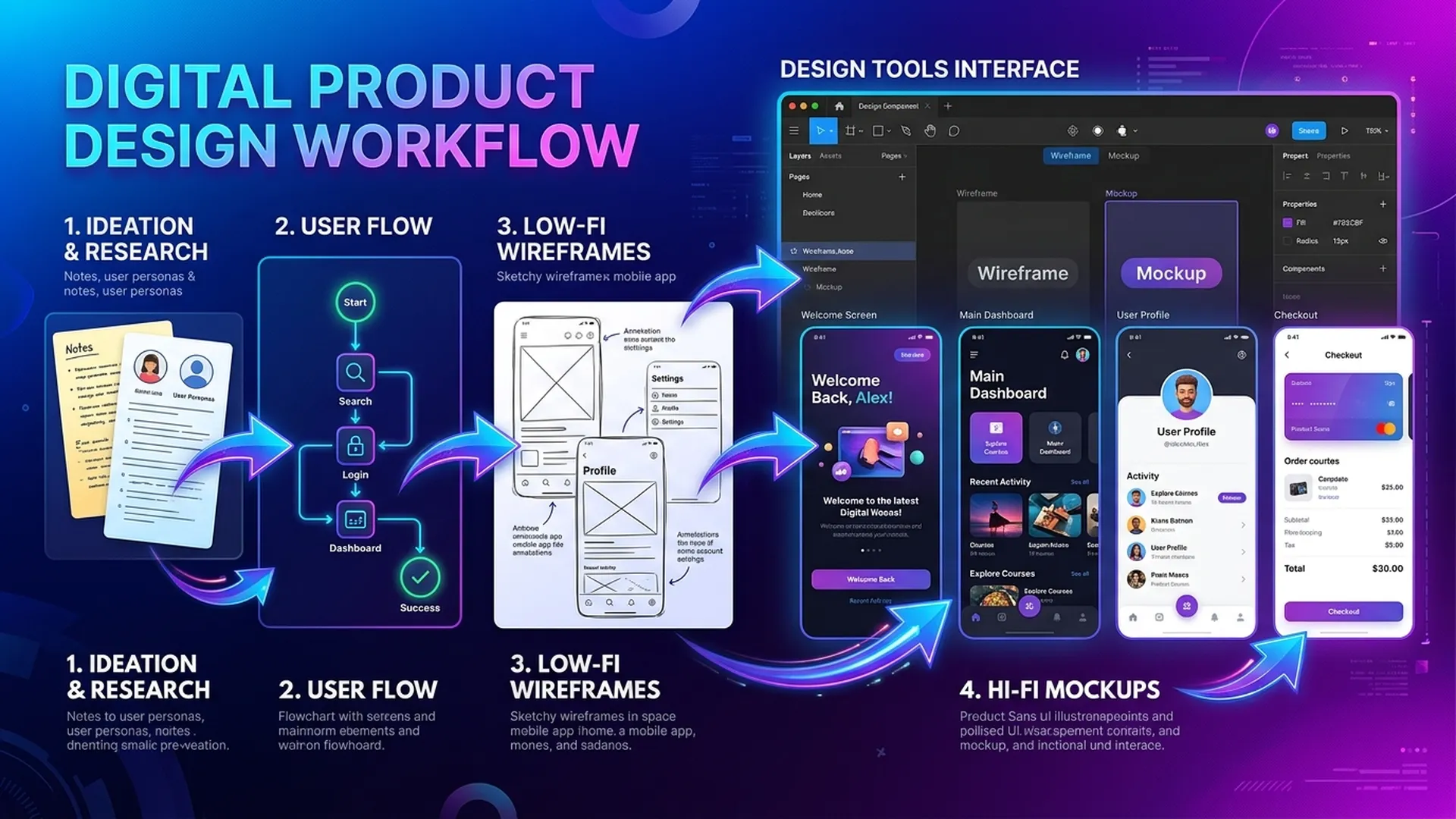
BA 使用 Figma 與 Draw.io 不是要和 designer 比美,而是為了 更清楚溝通。30 分鐘畫出的誠實 wireframe,往往比 3 頁純文字描述更有價值。
1. BA 用 Figma:夠用的 Lo-fi Wireframe
1.1 Lo-fi BA Wireframe 原則
BA 不需要 high-fidelity。Lo-fi wireframe 只要做到:
- 定義 element 位置(不需上色)
- 清楚標註每個 element 的 label 與 action
- 為每個欄位標註 data source(AI 還是 manual)
1.2 AI Feature 必備元件
AI Output Display Component:
┌─────────────────────────────────────┐
│  分類結果: [LABEL]                  │
│  信心分數: ████████░░ 82%           │
│                                     │
│  ⚠️ 低於自動化門檻 (90%)            │
│  [確認]  [編輯]  [拒絕]             │
└─────────────────────────────────────┘
必要 annotations:
[LABEL]-> AI API response field:result.label- Confidence bar -> 計算式:
result.confidence * 100 - Warning threshold -> 設定值:
AI_AUTO_APPROVE_THRESHOLD = 0.9 - 按鈕僅在
confidence < threshold顯示
1.3 BA 的 Figma Template Structure
📁 [Project] — BA Workspace
├── 🗂 Page: User Flows
│   ├── Frame: Happy Path Flow
│   └── Frame: Fallback Path Flow
├── 🗂 Page: Wireframes
│   ├── Frame: [Screen 1 Name]
│   ├── Frame: [Screen 1 — Error State]
│   └── Frame: [Screen 1 — Loading State]
└── 🗂 Page: Annotations
    └── Frame: Component Spec Sheet
Frame 命名規則:[ScreenID]-[Name]-[State]
例如:S03-ClaimReview-AILowConfidence
2. Draw.io 用於 Flow Diagram
2.1 何時用 Draw.io 而不是 Figma?
| 圖表類型 | 適合工具 |
|---|---|
| Wireframe、UI mockup | Figma |
| BPMN flow、sequence diagram | Draw.io |
| Architecture diagram | Draw.io |
| User journey map | 兩者皆可 |
2.2 Draw.io 的 AI Flow Pattern
基本模式:含 Confidence Gate 的 AI Flow
[User Action]
    ↓
[AI Processing] ──→ [Confidence Score]
    ↓
[Gateway: score ≥ threshold?]
├── YES → [Auto Action] → [Log + Notify]
└── NO  → [Queue for Human Review]
              ↓
         [Agent Review UI]
              ↓
         [Approve / Reject / Edit]
              ↓
         [Update + Log + Feedback to Model]
Draw.io 常用符號:
- 圓角矩形 -> AI Service/Task
- Diamond (X-gateway) -> 基於 score/threshold 的決策
- 雙圓 (Event) -> timer、error、escalation trigger
- 圓柱 -> data store/database
- 人物 icon -> human task(Human lane)
2.3 HITL 的 Multi-lane Pattern
┌────────── System Lane ──────────────────────┐
│ [Receive Request] → [AI Classify] → [Score] │
└─────────────────────────────────────────────┘
                              ↓
                    [Confidence ≥ 0.85?]
                    ┌─────────┴─────────┐
                   YES                 NO
                    ↓                   ↓
┌── Auto Lane ───┐  ┌──── Agent Lane ──────────┐
│ [Auto Approve] │  │ [Review Queue] → [Decision] │
│ [Log + Close]  │  │ [Override + Comment]        │
└────────────────┘  └────────────────────────────┘
3. AI 功能 Annotation 最佳實務
沒有 annotation 的 wireframe,等於少了一半需求。BA 應標註:
| Element | 必要 Annotation |
|---|---|
| Loading state | 「X 秒 timeout -> 顯示 error state Y」 |
| AI result display | 「Source: POST /api/classify -> field: result.category」 |
| Confidence bar | 「Scale: 0-100%,warning threshold: < 85%」 |
| Override button | 「override 寫入 audit_log:user_id + timestamp + reason」 |
| Error state | 「HTTP 5xx -> '系統處理中,請稍後再試'」 |
4. BA-Designer-Dev 在 Figma 的協作流程
BA:        在 Figma 建 lo-fi wireframe + annotation
    ↓
Designer:  補上 visual design(色彩、字型)— 不改 flow/annotation
    ↓
BA Review: 驗證 designer 調整後 annotation 仍正確
    ↓
Dev:       依 Figma + annotation 開發(BA 是不清楚時第一詢問點)
**常見錯誤:**BA 交接後不再 review,導致 annotation 遺失或錯誤。
結論
Figma 與 Draw.io 不是 designer 或 architect 的專屬工具,它們是 BA 與 stakeholder 的 共同語言。BA 若能畫出清楚的 lo-fi wireframe 與 flow diagram,可減少 40-60% 的 sprint clarification 問題。
優先順序應是 annotation 完整度,而不是 視覺美觀。